
Features
Everything between “who’s working?” and payday
Scheduling, swaps, time off, team chat, clocking in, reports and payroll, shown with a real (well, demo) café: Dana manages the team, and Marcus, Priya, Elena and the crew run the floor.
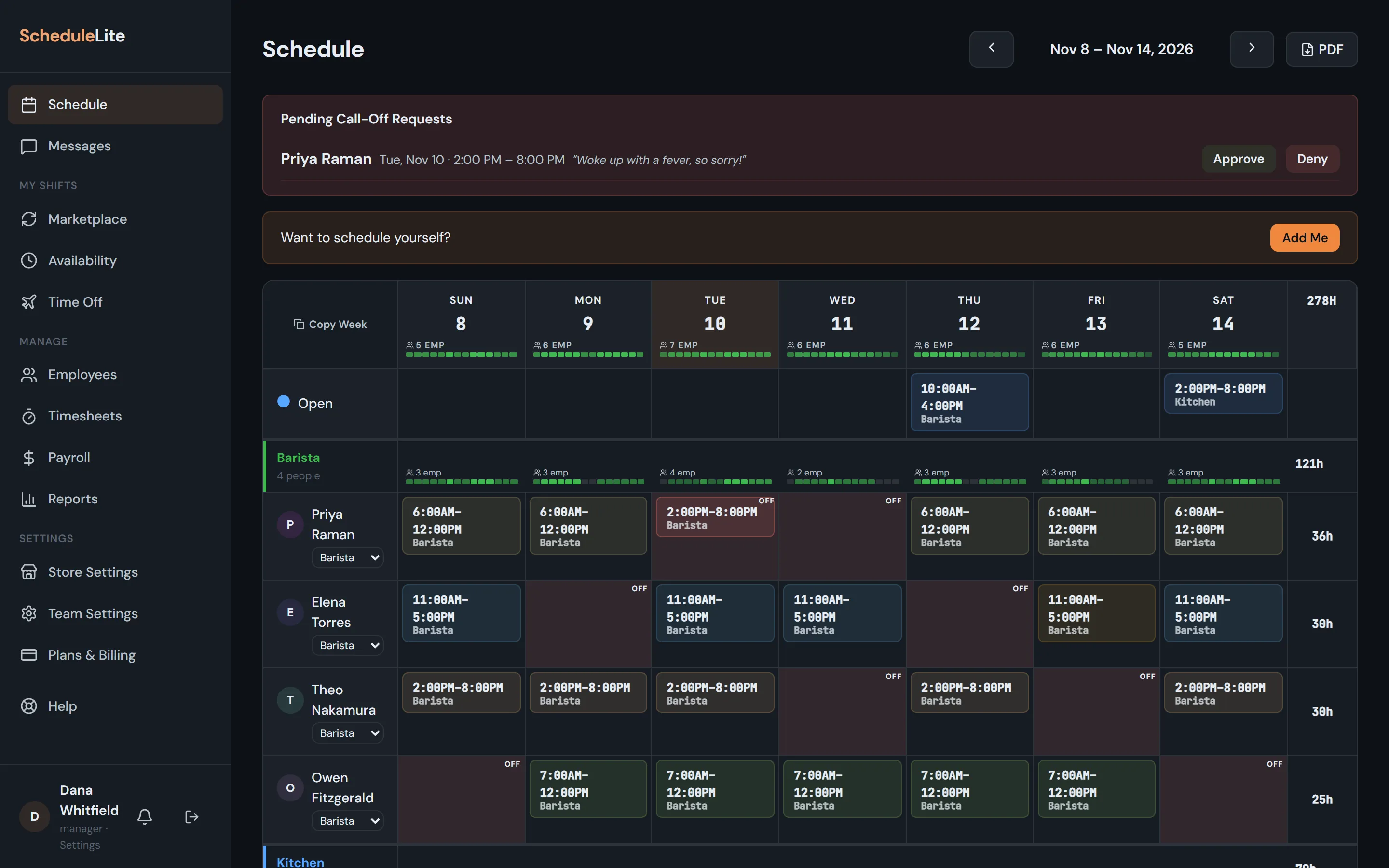
Weekly schedule
Build next week in the time it takes to drink a coffee
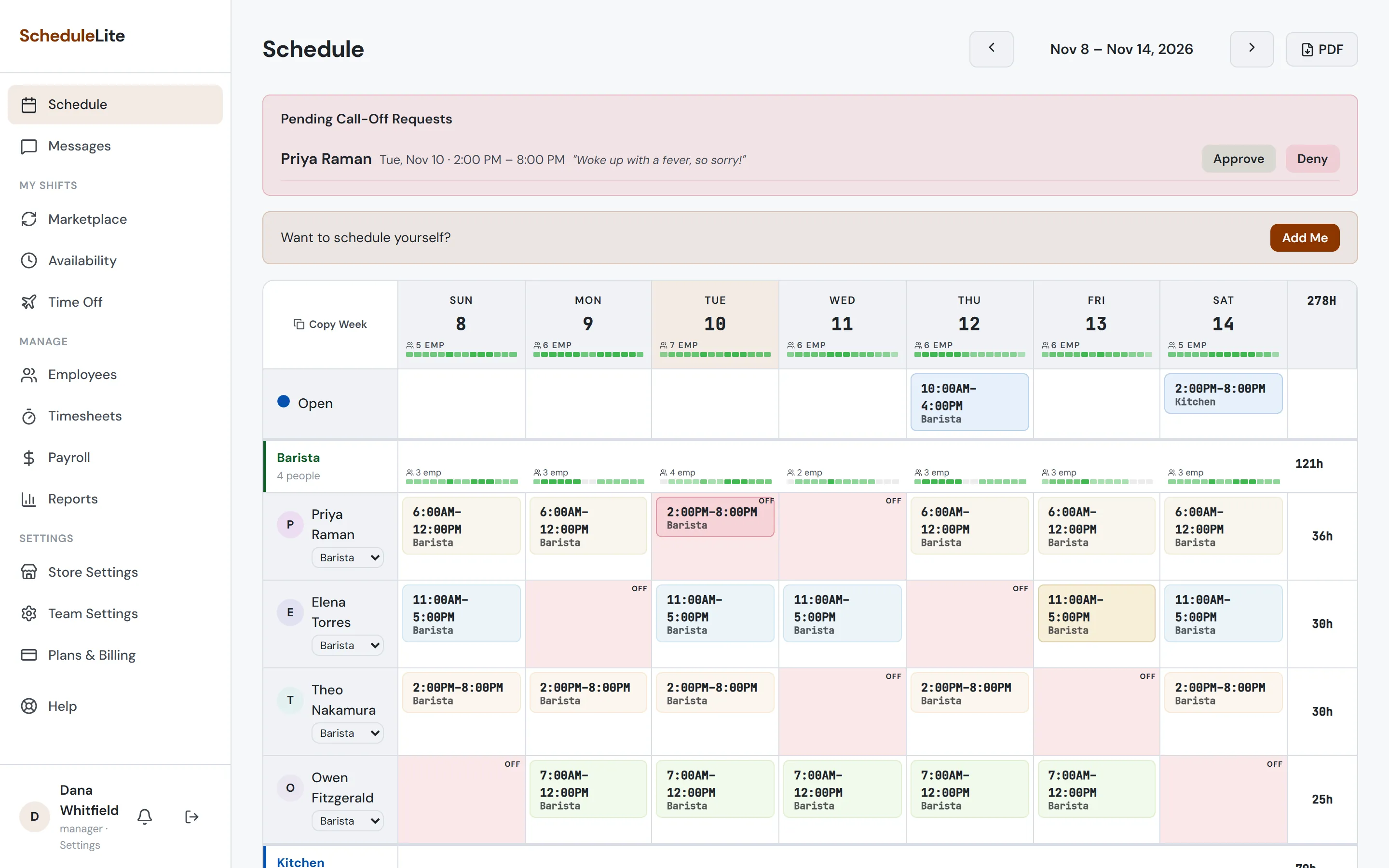
One grid, grouped by role. Double-click to add a shift, use your saved templates, copy and paste a whole block with Ctrl+C / Ctrl+V, or start from last week with Copy Week. Nothing reaches your team until you hit Publish, and publishing checks for overtime, availability and approved time off first.
- Shift templates for openers, mids and closers
- Keyboard shortcuts, multi-select and undo
- Copy a day, a block, or the whole week
- Notes on a shift for the person working it
- Print-ready PDF export on Plus and up
Coverage & conflicts
Spot the gaps before they turn into a rough Saturday
Coverage bars under every day show how many people are on, hour by hour. Days people can’t work are shaded right on the grid, and a shift outside someone’s availability lights up red before you publish it.
- Hour-by-hour staffing heatmap per day and per role
- Availability and time off shown on the grid
- Overtime warnings using federal or state rules
Shift marketplace
Swaps without the group text
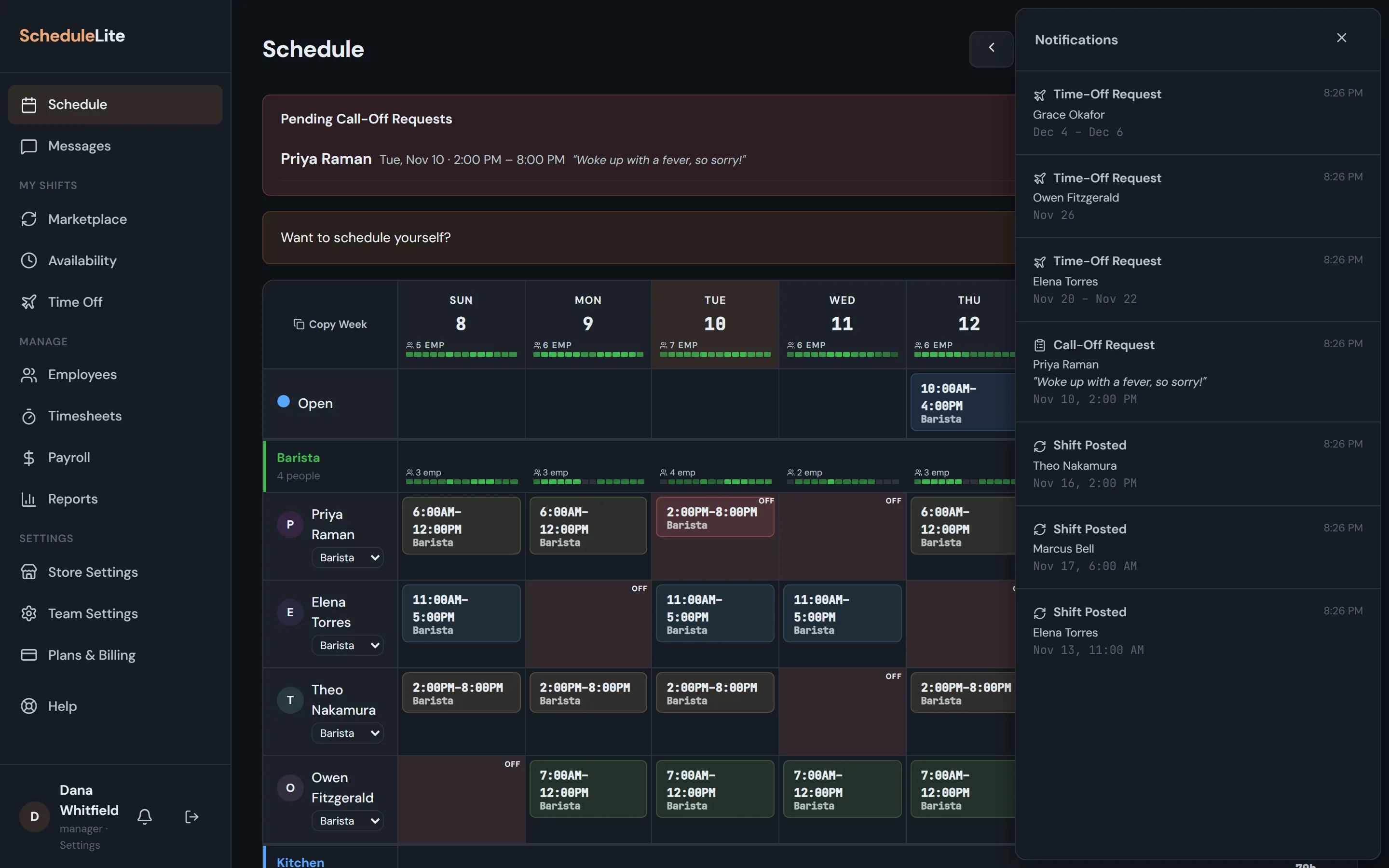
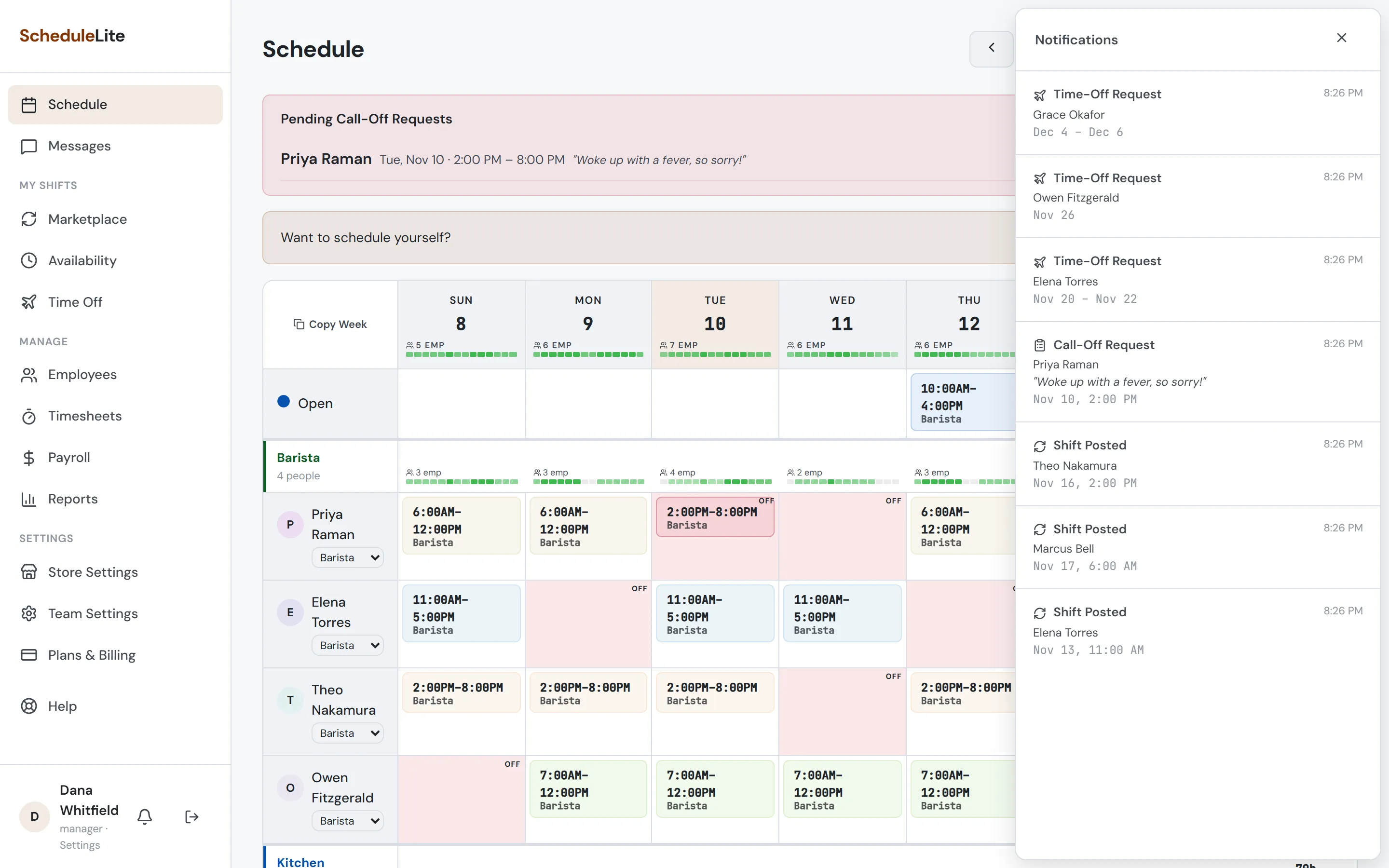
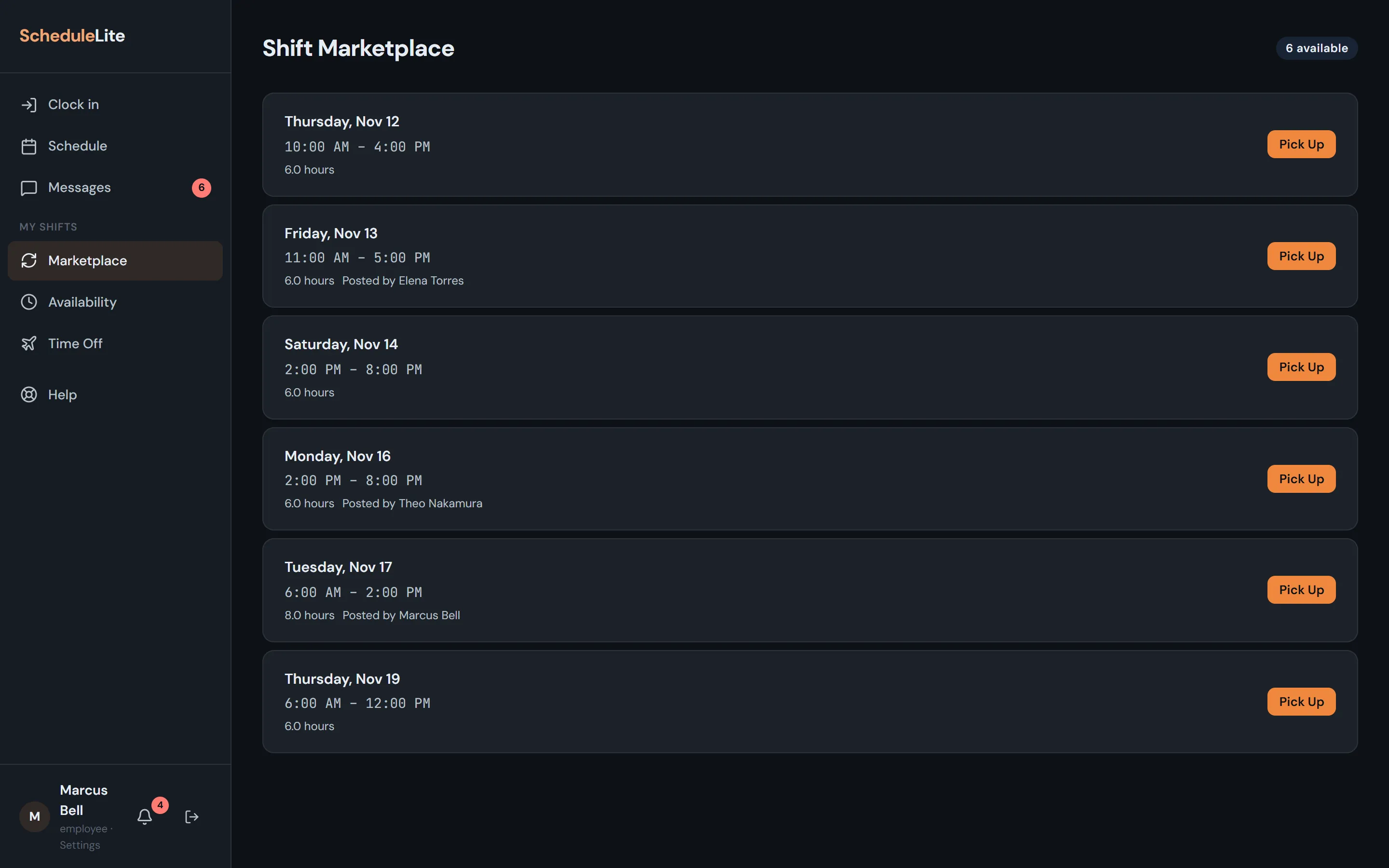
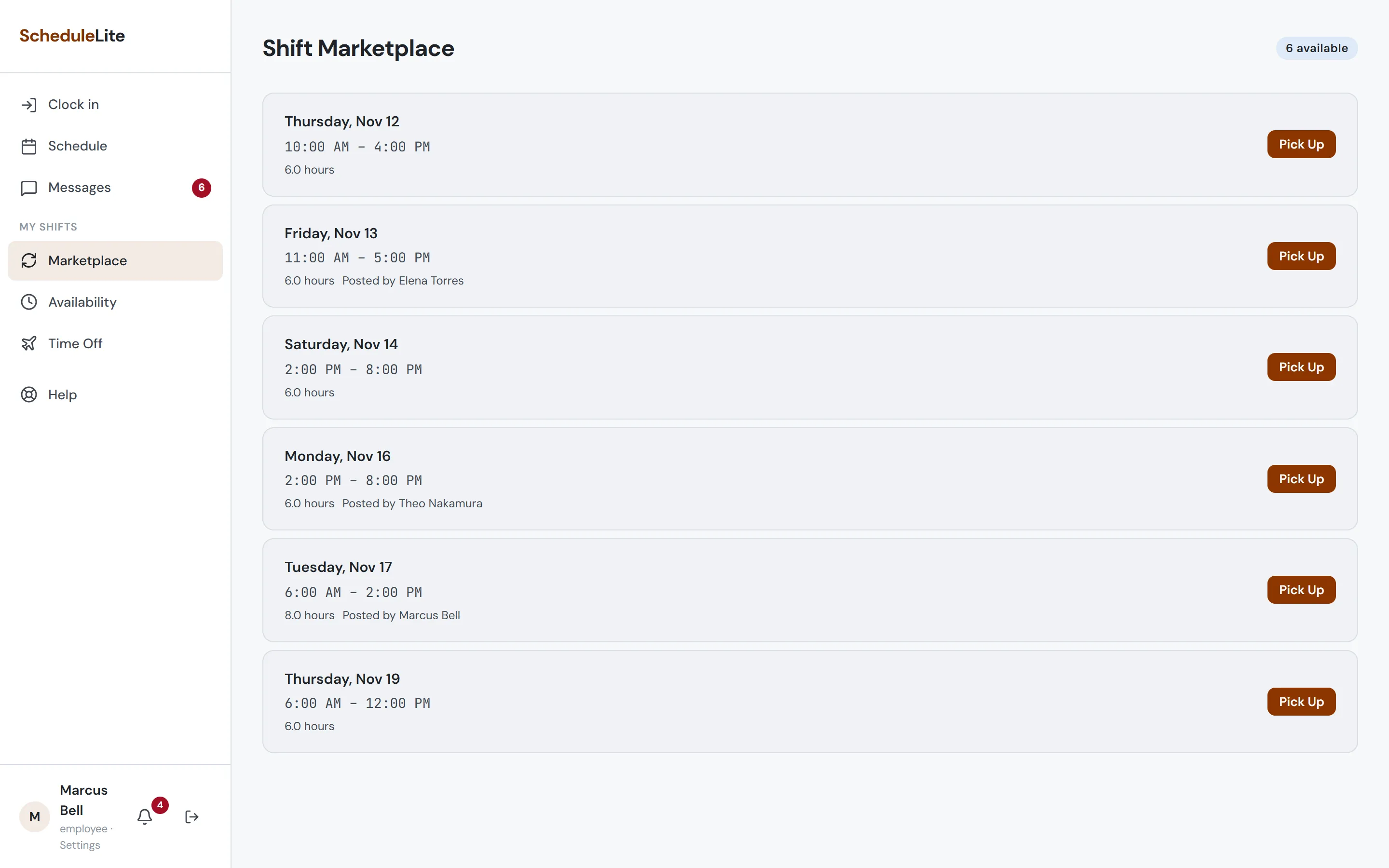
Employees post shifts they can’t work, and teammates pick them up in a tap. The shift stays covered by the original person until someone takes it, and CrewCrow blocks pickups that would overlap, clash with availability, or trigger overtime.
- Open and posted shifts in one list
- Pickups checked for overlaps, availability and overtime
- Everyone notified automatically
Messages
Team chat and announcements, right next to the schedule
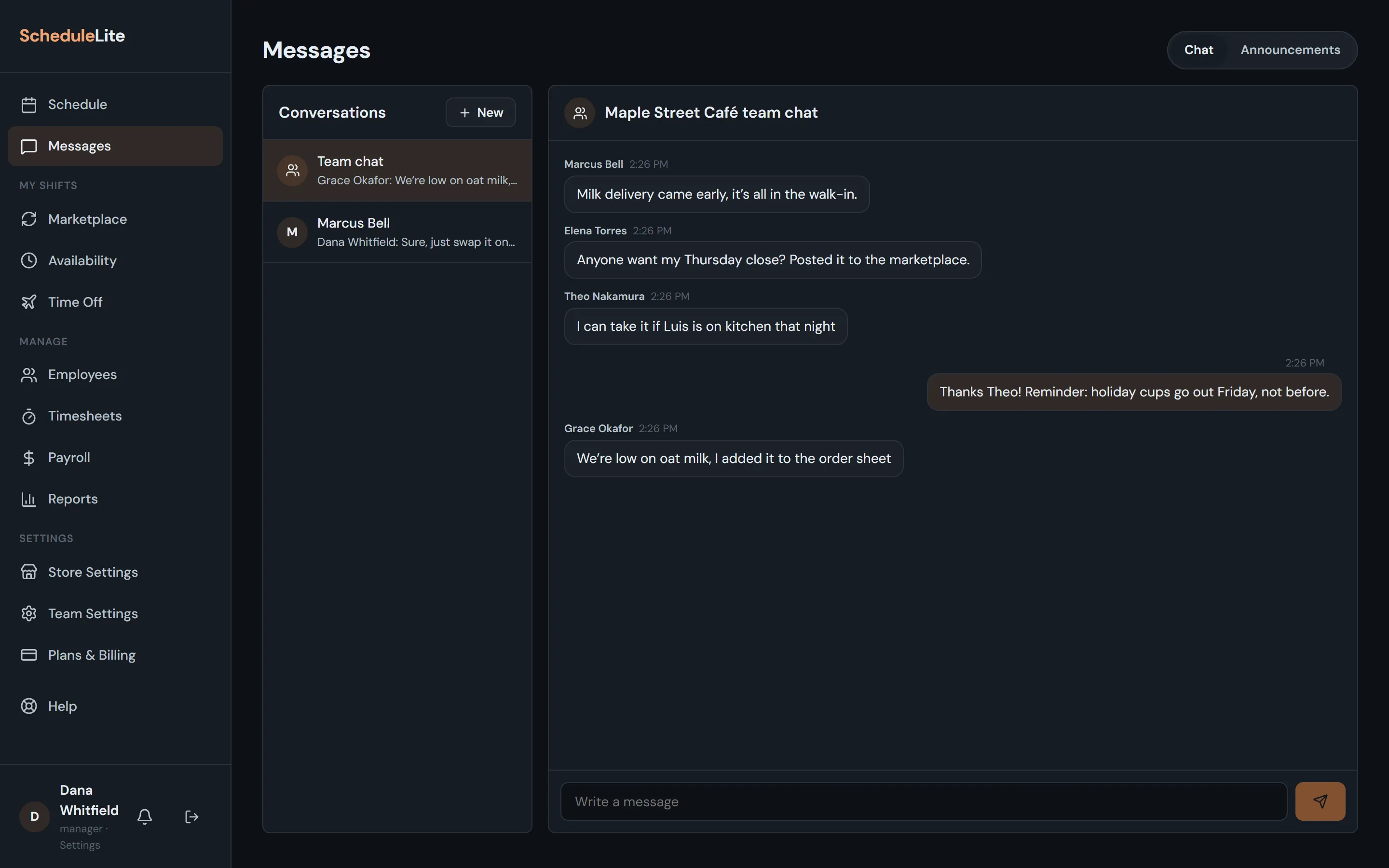
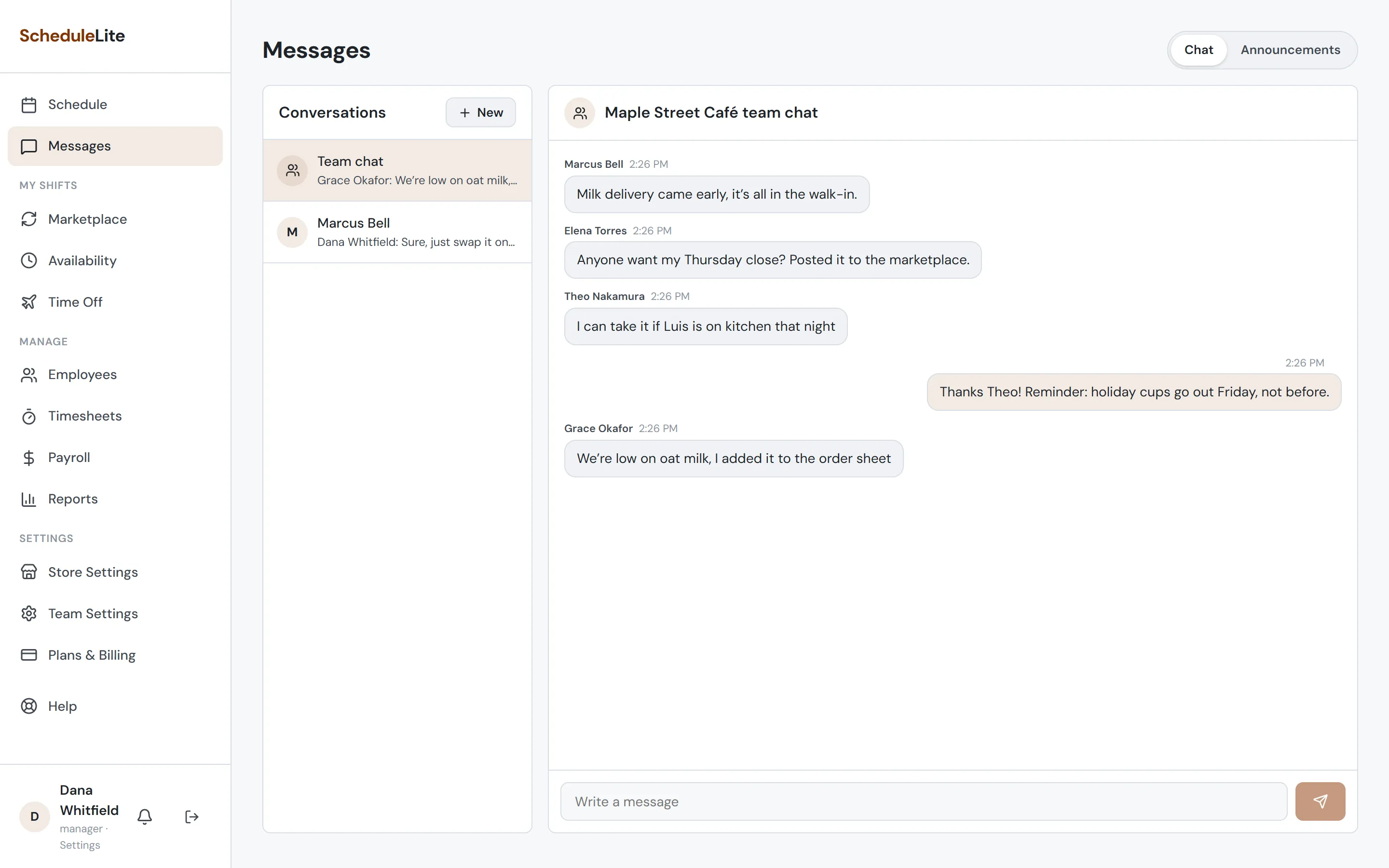
Every store gets a team chat, and managers post announcements that stay pinned until they’re out of date. On Plus and up, you can see who has read each announcement, and people can message each other one to one.
- Team chat for every store, on every plan
- Pinned announcements with read receipts on Plus and up
- 1:1 messages on Plus and up
- Managers can remove team chat messages; private messages stay private
Time off
Time off requests in one place, with balances that add up
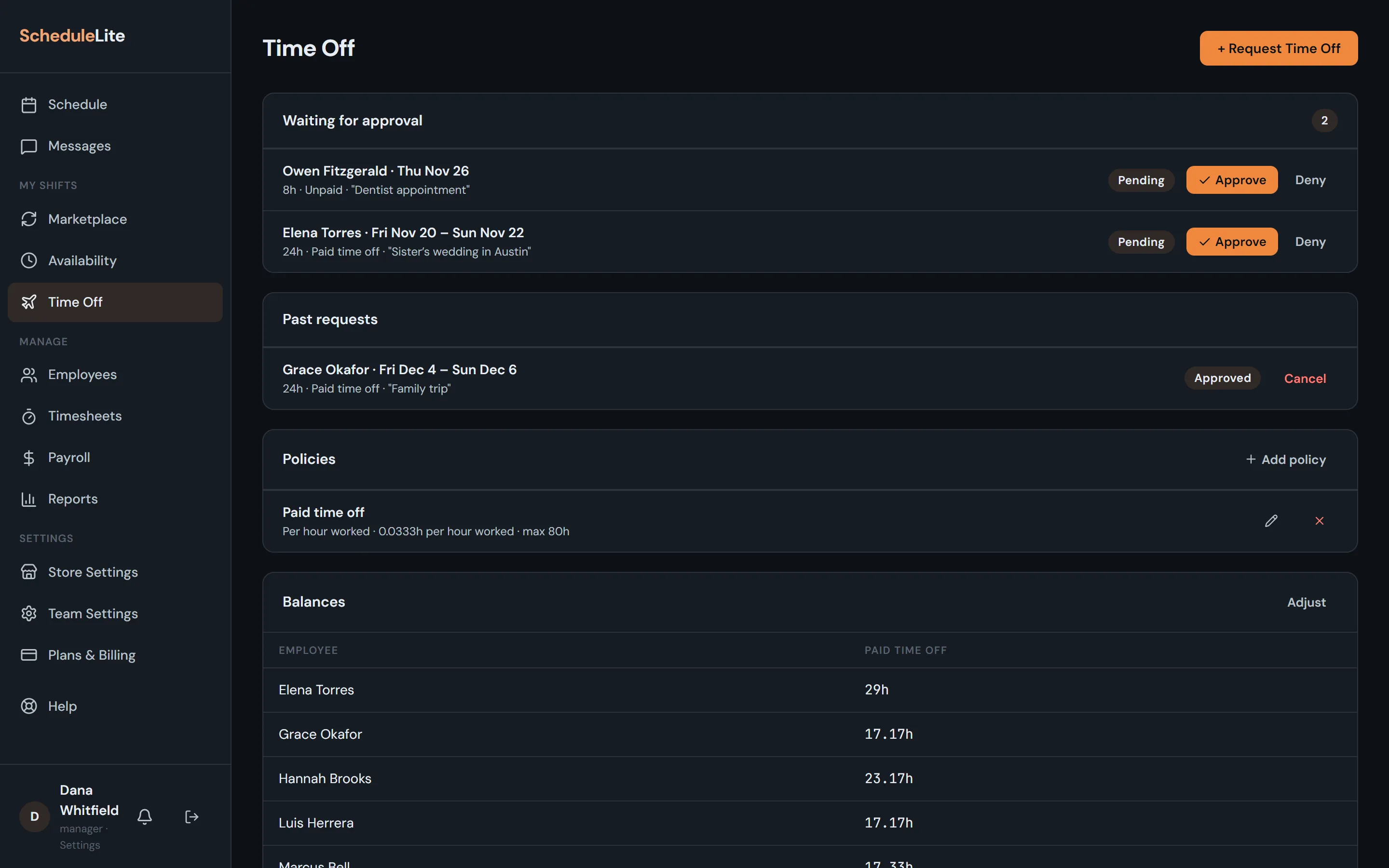
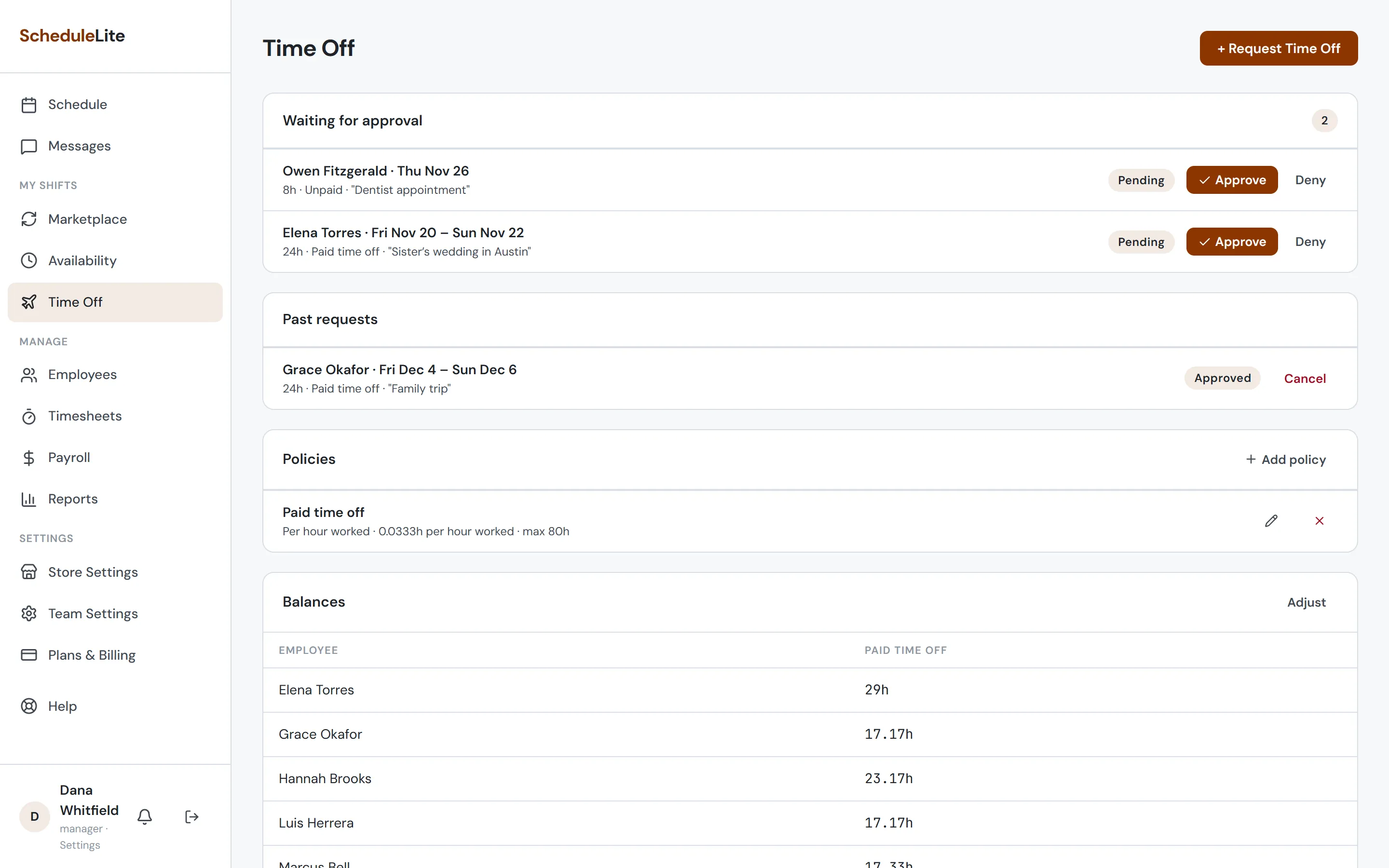
Employees request a day, a few hours or a whole week. Managers approve or deny in one click, and approved time off shows on the schedule so nobody gets booked by mistake. On Plus and up, set up paid time off that builds up as people work.
- Requests and approvals on every plan
- Full and partial days, paid or unpaid
- PTO earned per hour worked or granted each year, on Plus and up
- Caps, carryover and manual adjustments
Clock in & timesheets
Clock in from a phone, fix a missed punch in seconds
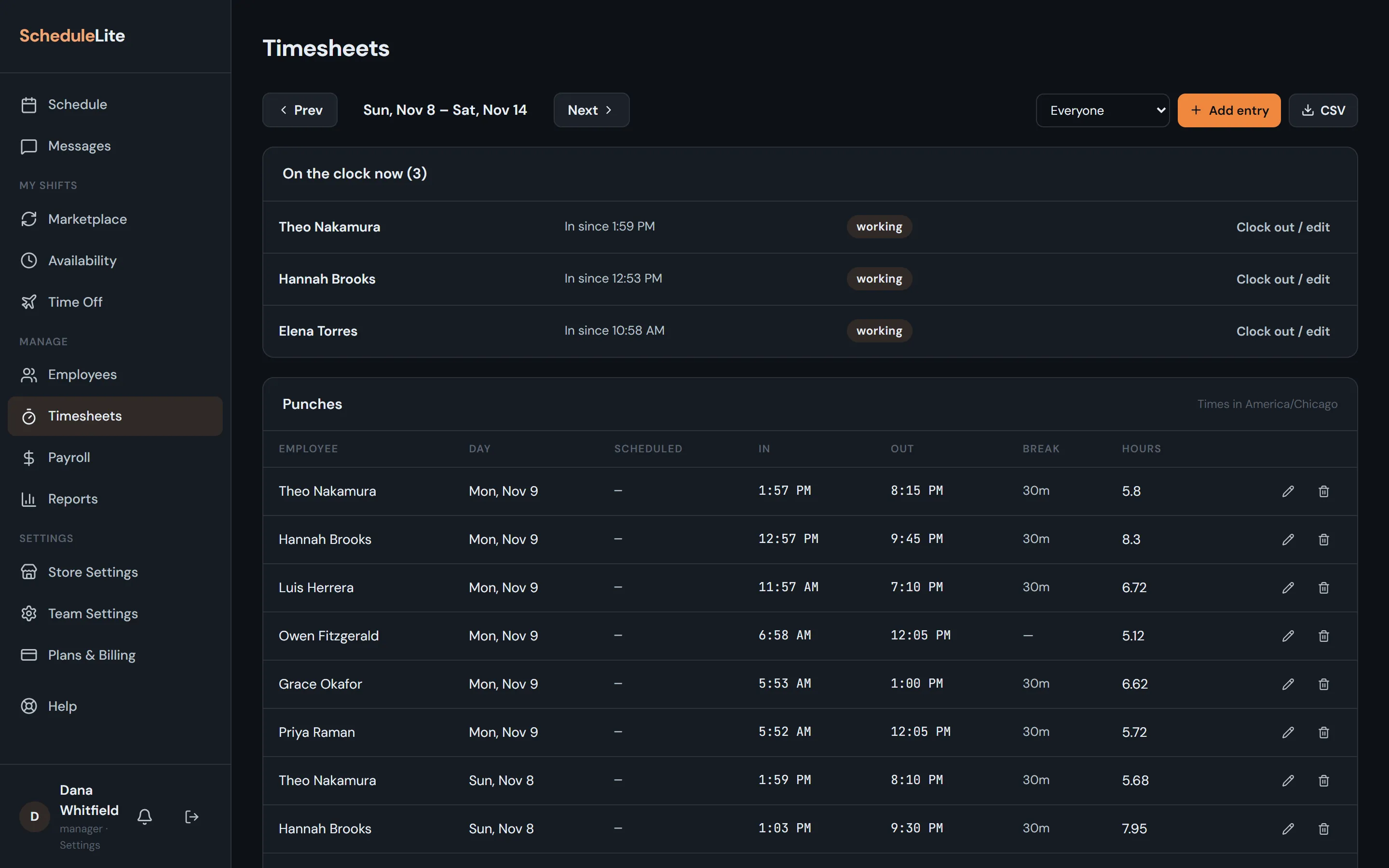
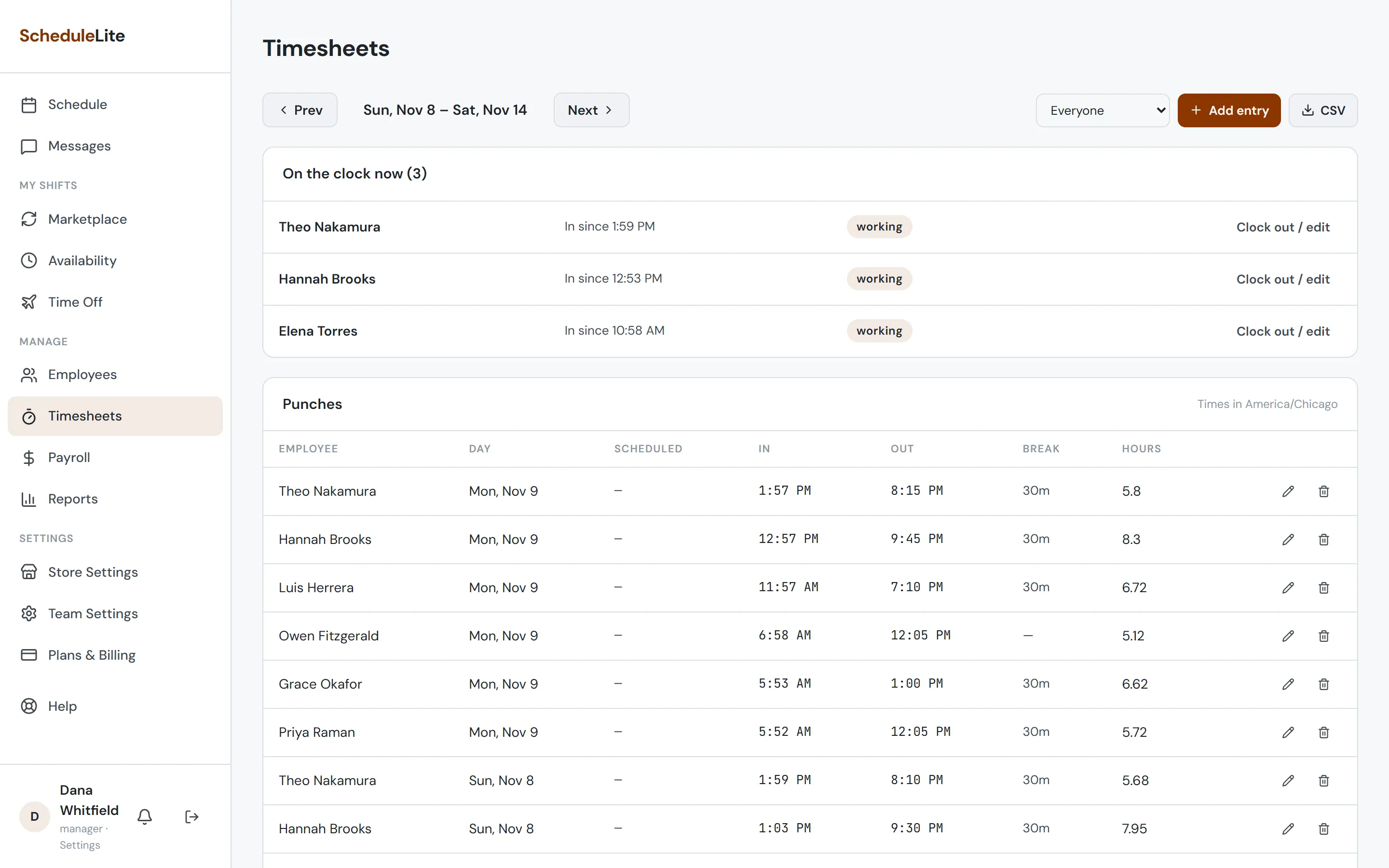
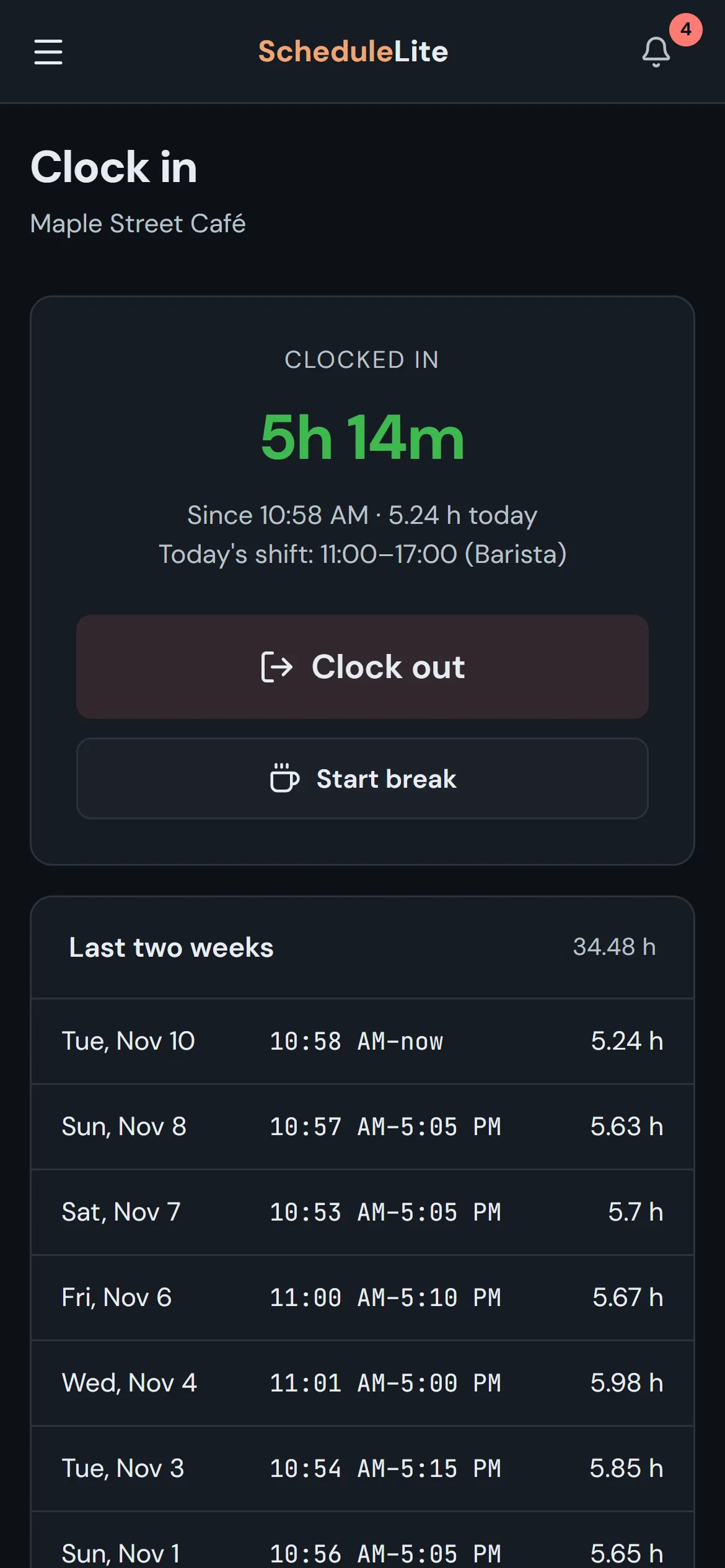
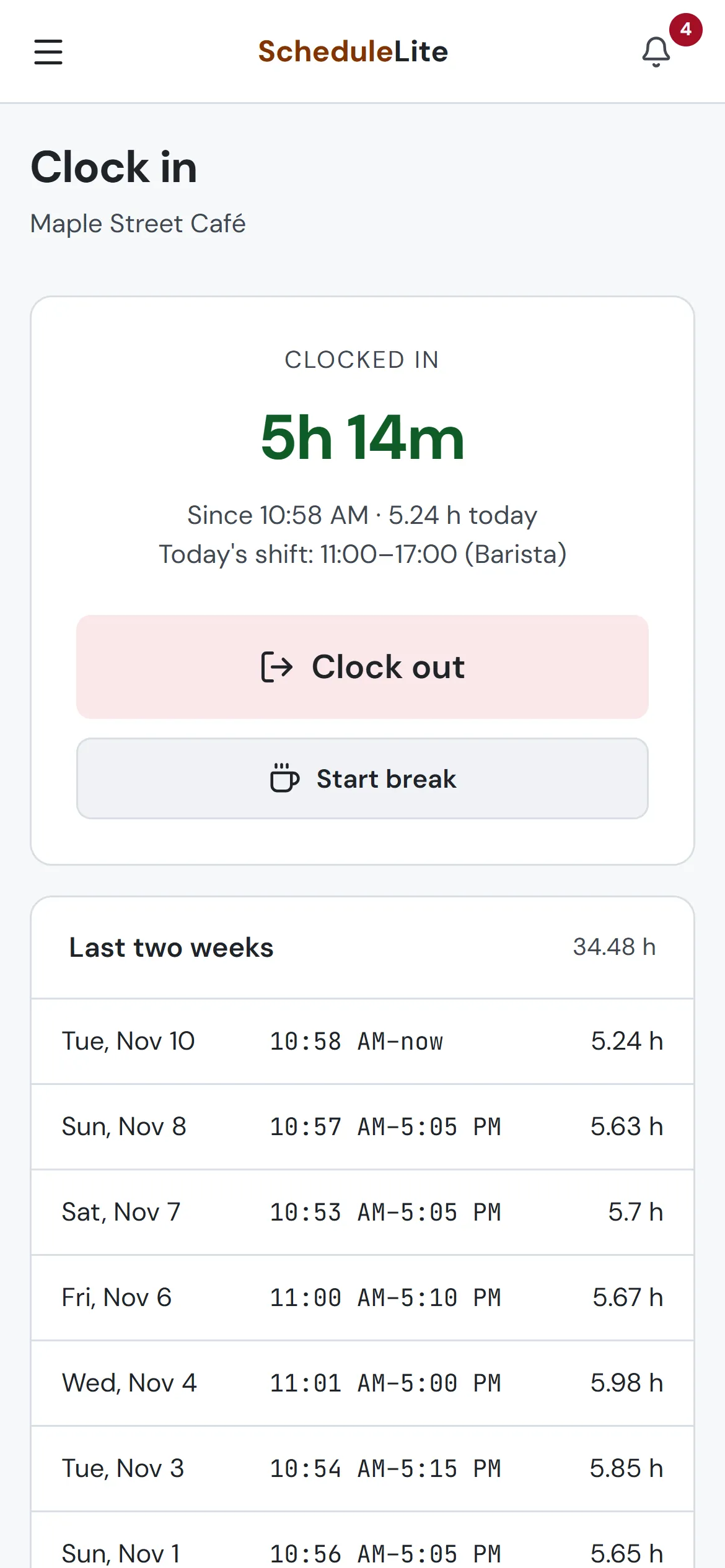
On Plus and up, staff tap Clock in when they arrive, take breaks and clock out from their own phones. Timesheets show who’s on the clock right now and every punch next to the scheduled shift. Pro can check that people are at the store when they clock in, and set rules for clocking in early or late.
- Clock in, breaks and clock out from any phone
- Timesheets with every punch and the scheduled shift
- Add or fix entries; nobody edits their own hours
- Store geofence and early and late punch rules on Pro
Reports
See where the hours and the money went
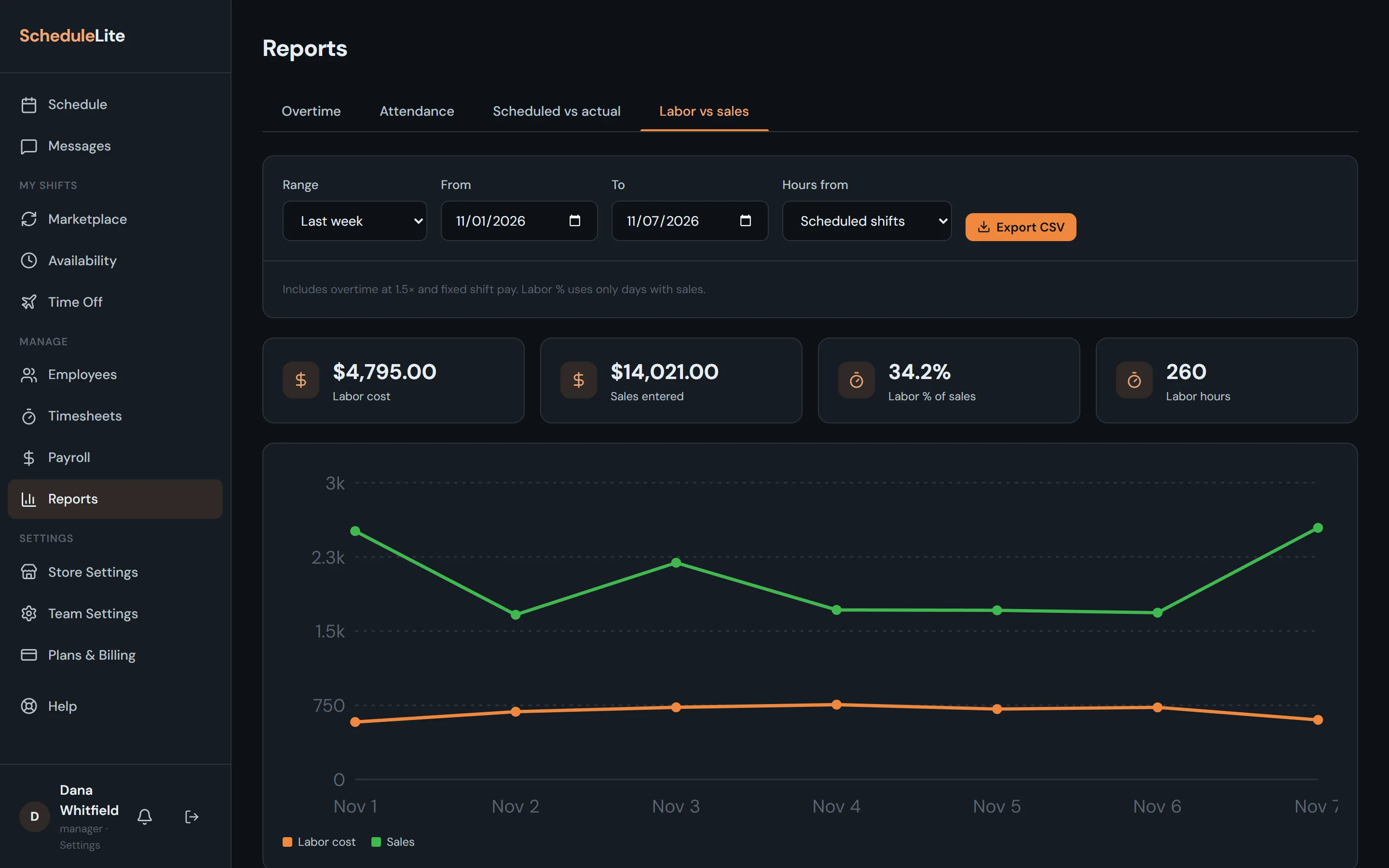
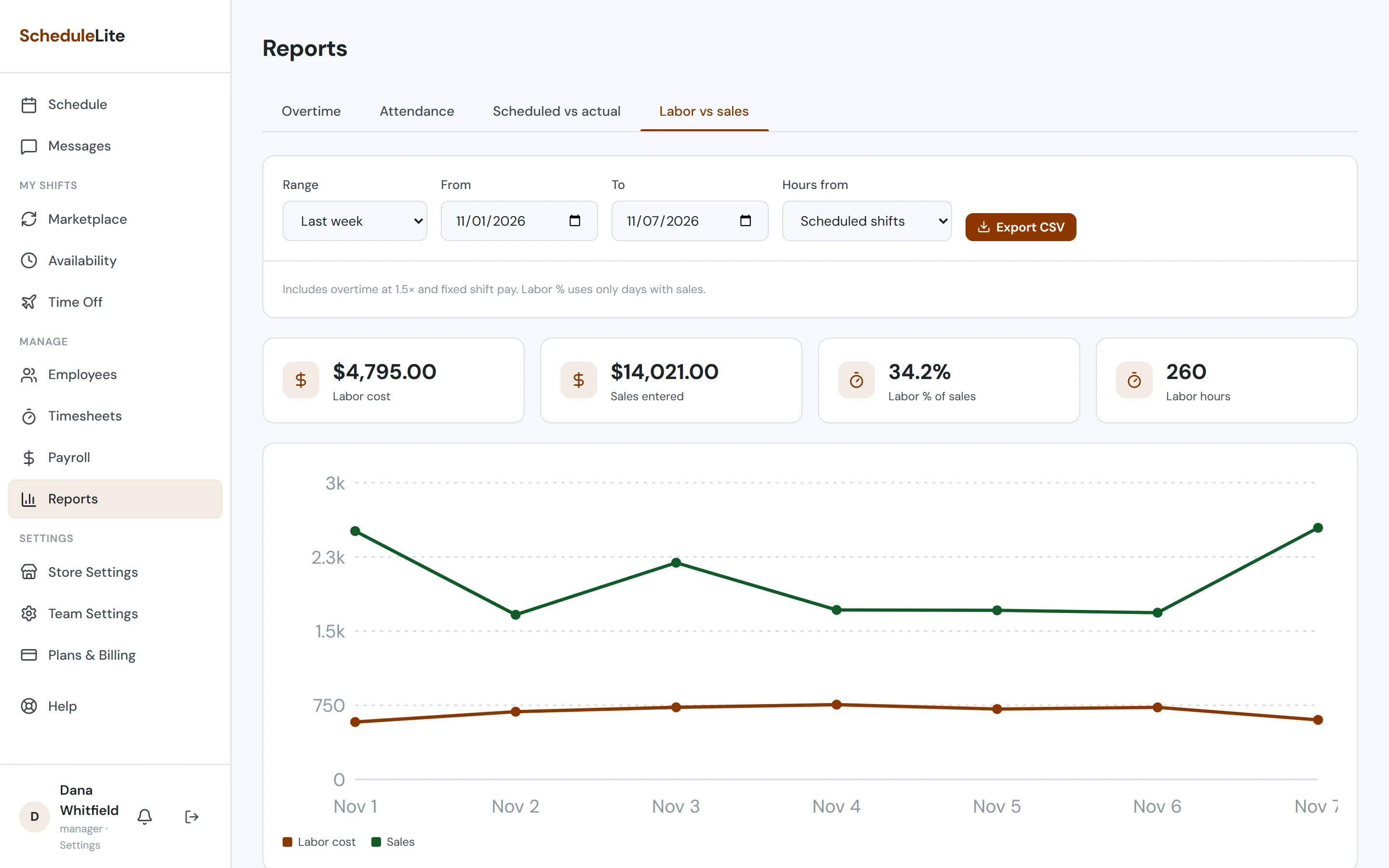
Track overtime week by week on every plan. On Plus and up, add attendance and labor vs sales: enter each day’s sales and see labor as a share of them. Pro compares scheduled hours with clocked hours and flags late punches and no-shows. Export any report to CSV.
- Overtime trend on every plan
- Attendance and labor vs sales on Plus and up
- Scheduled vs actual, late punches and no-shows on Pro
- CSV exports, and reports across stores on Enterprise
Availability
Your team tells you when they can work, once
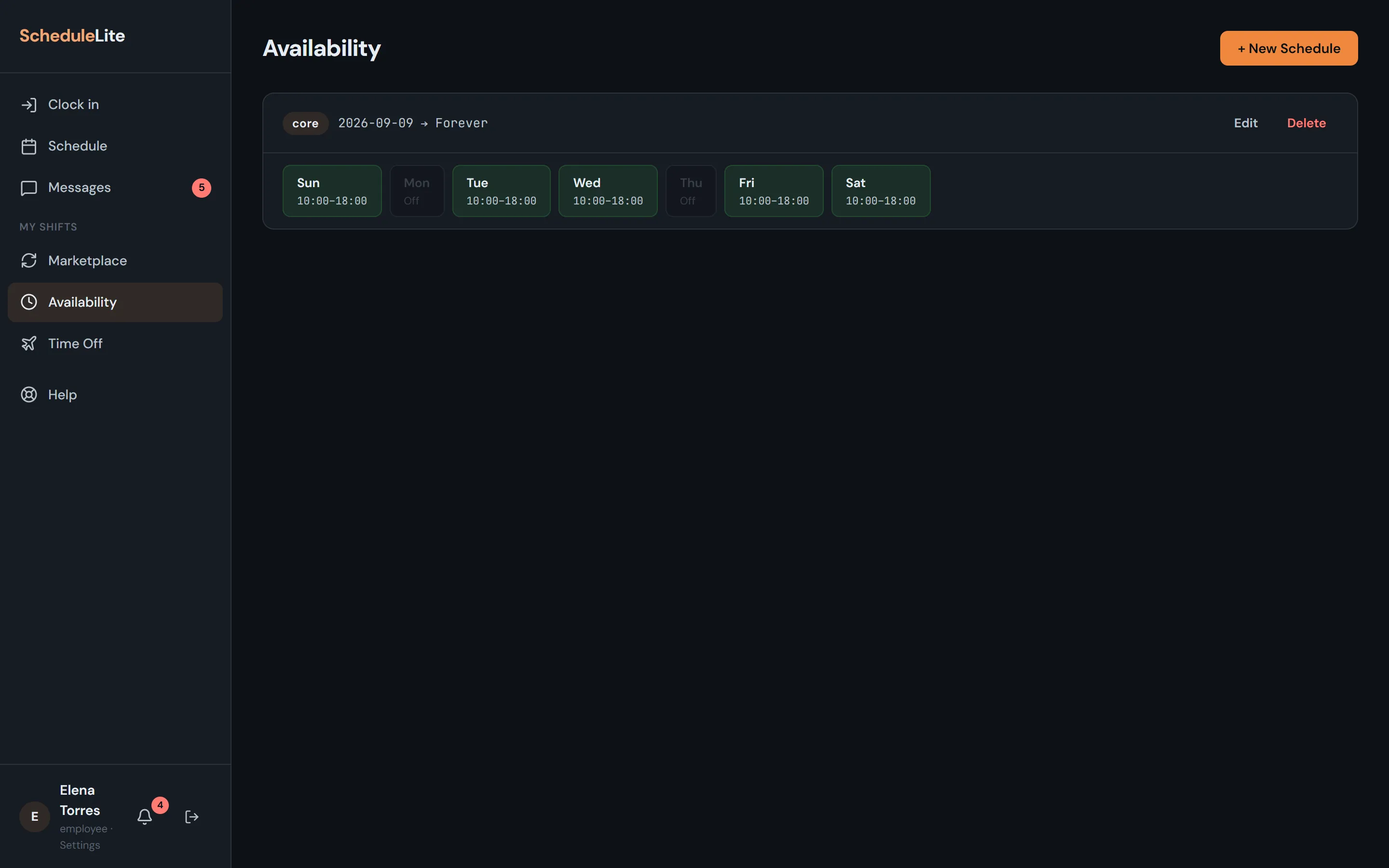
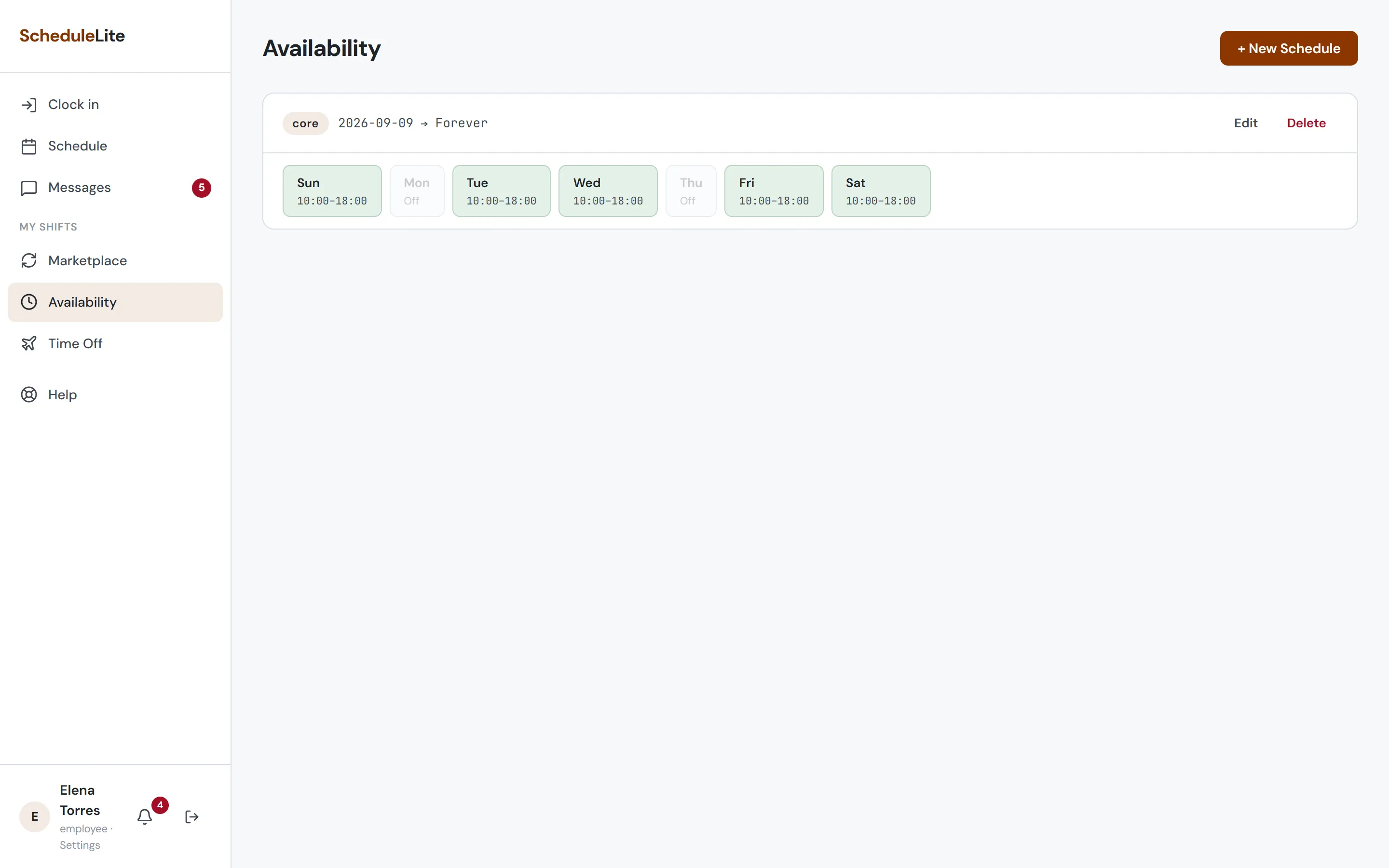
Employees set a core weekly schedule with all-day, partial or off days, then layer on temporary changes for exam weeks. Alternating weeks are supported too.
- Core and temporary schedules
- Time windows per day
- Every-other-week patterns
Call-offs & late notices
When plans change, everyone finds out fast
Same-day call-offs land at the top of your schedule with the reason. Approve and the shift opens up for the team to grab. Running late? One tap lets the manager know.
- Approve or deny in one click
- Approved call-offs become open shifts
- “Running late” notices with a reason
Payroll
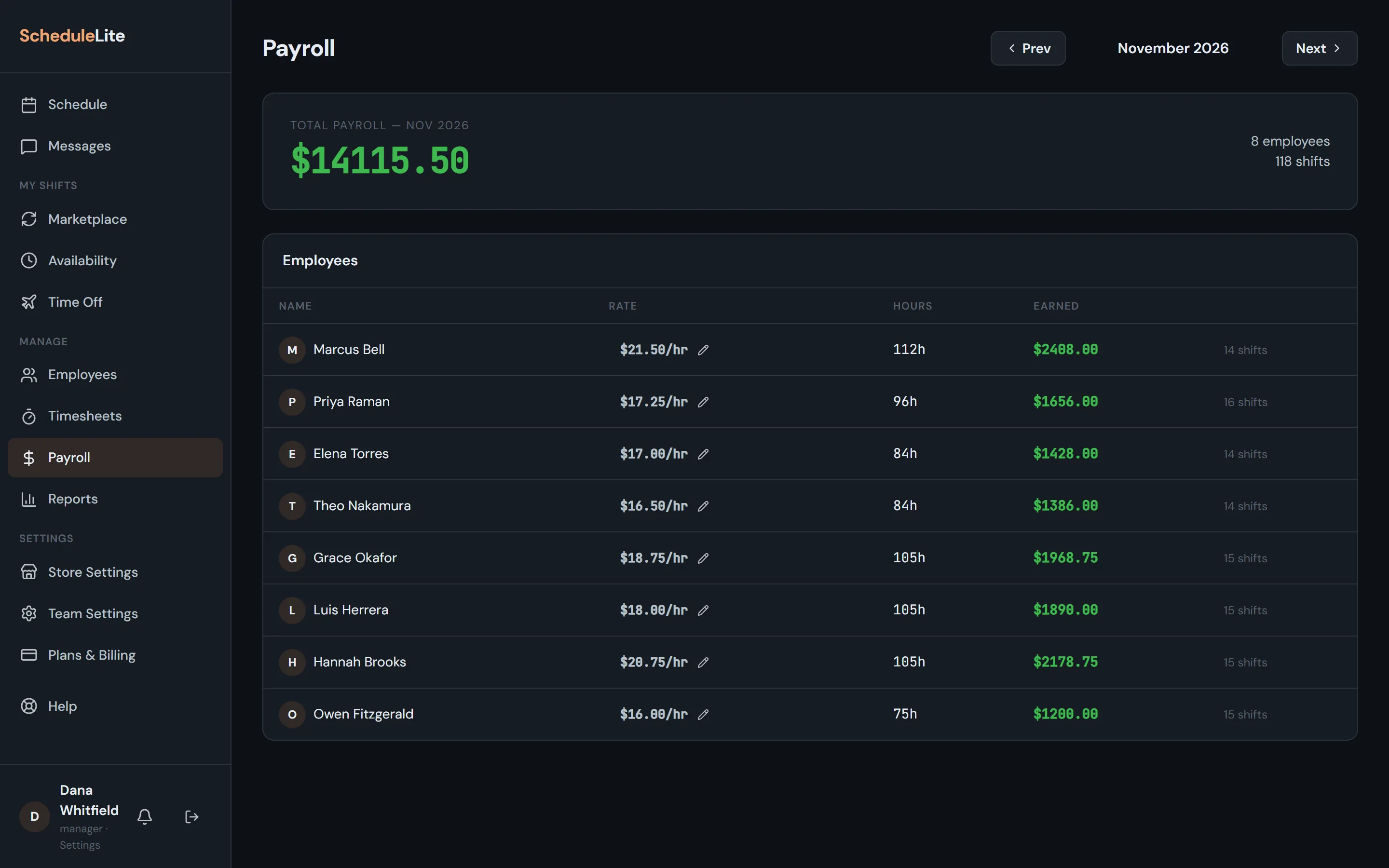
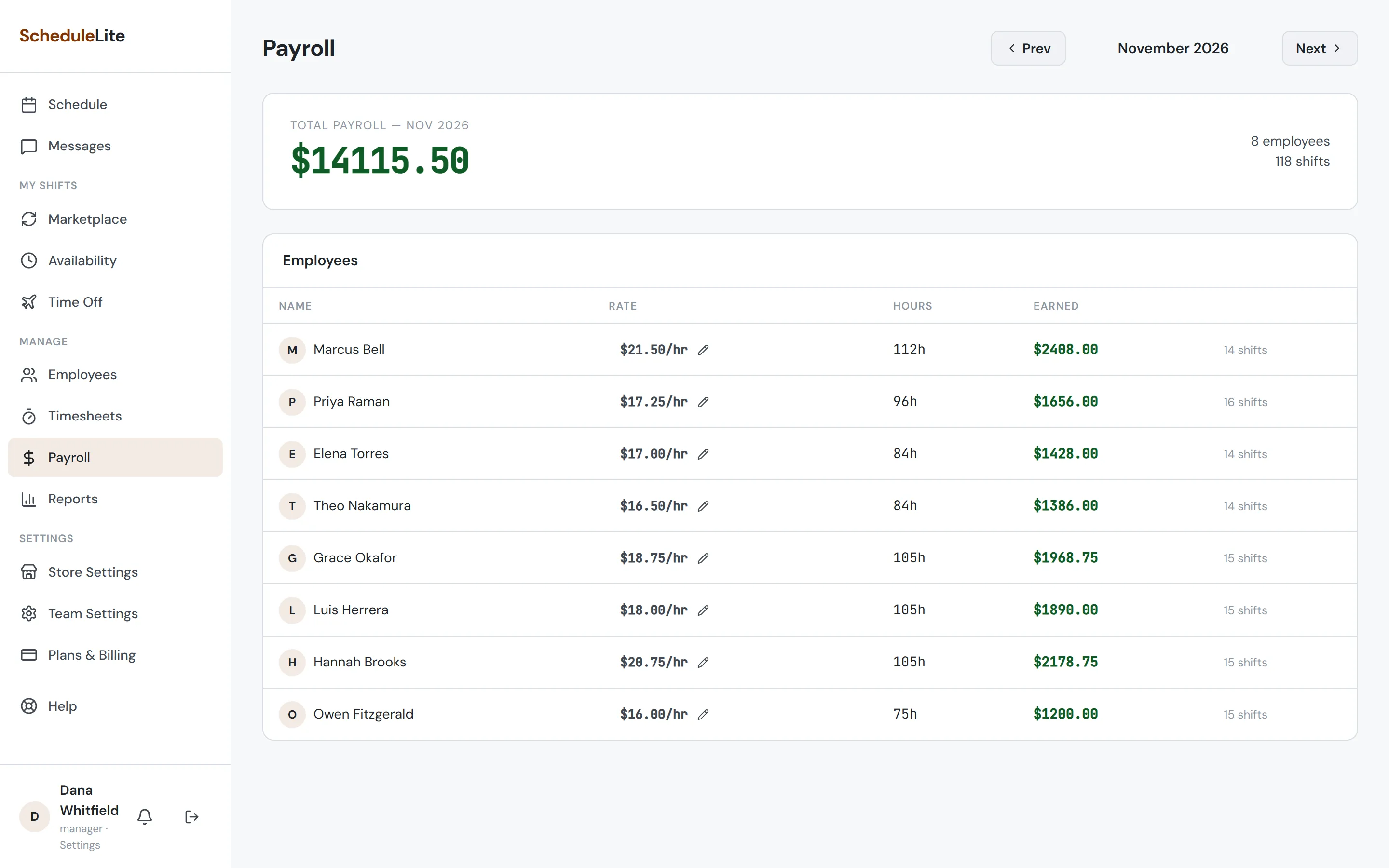
Know your labor cost before payday
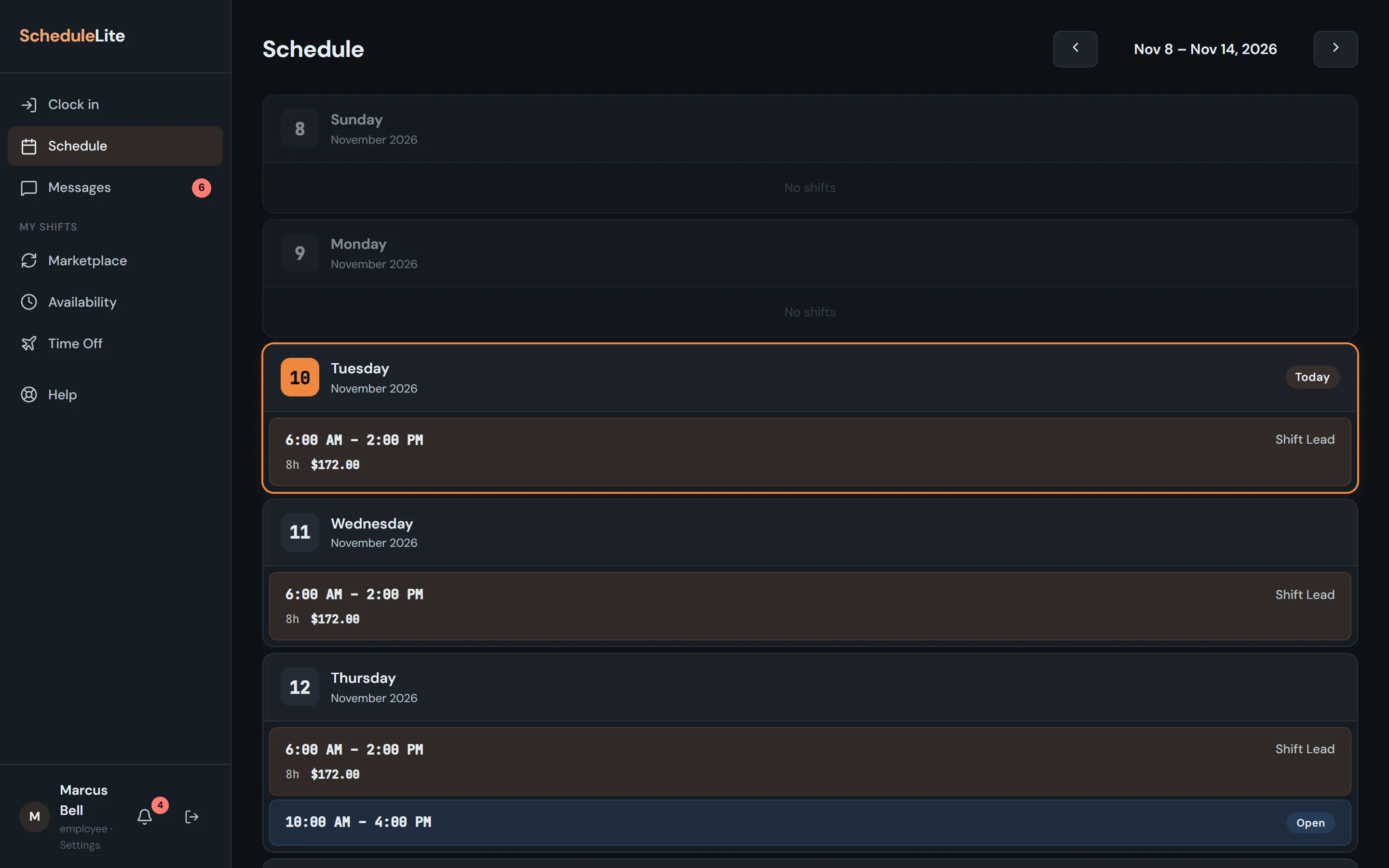
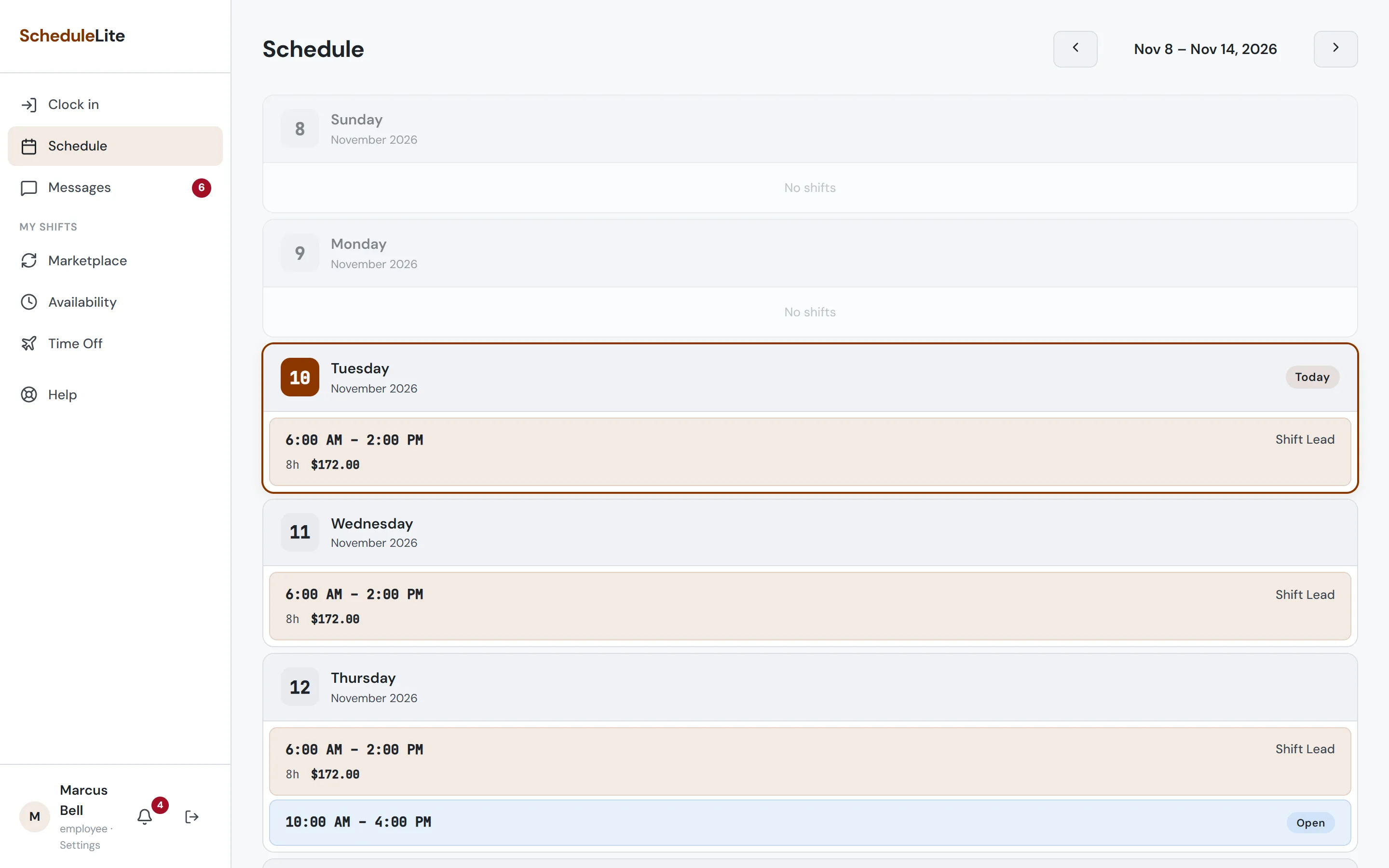
Hours and earnings for everyone this month, totaled for the team. Edit rates inline for hourly or fixed-rate staff, and employees see what each shift pays them. Pro keeps every past month.
- Monthly totals per employee and team
- Hourly and fixed-rate pay
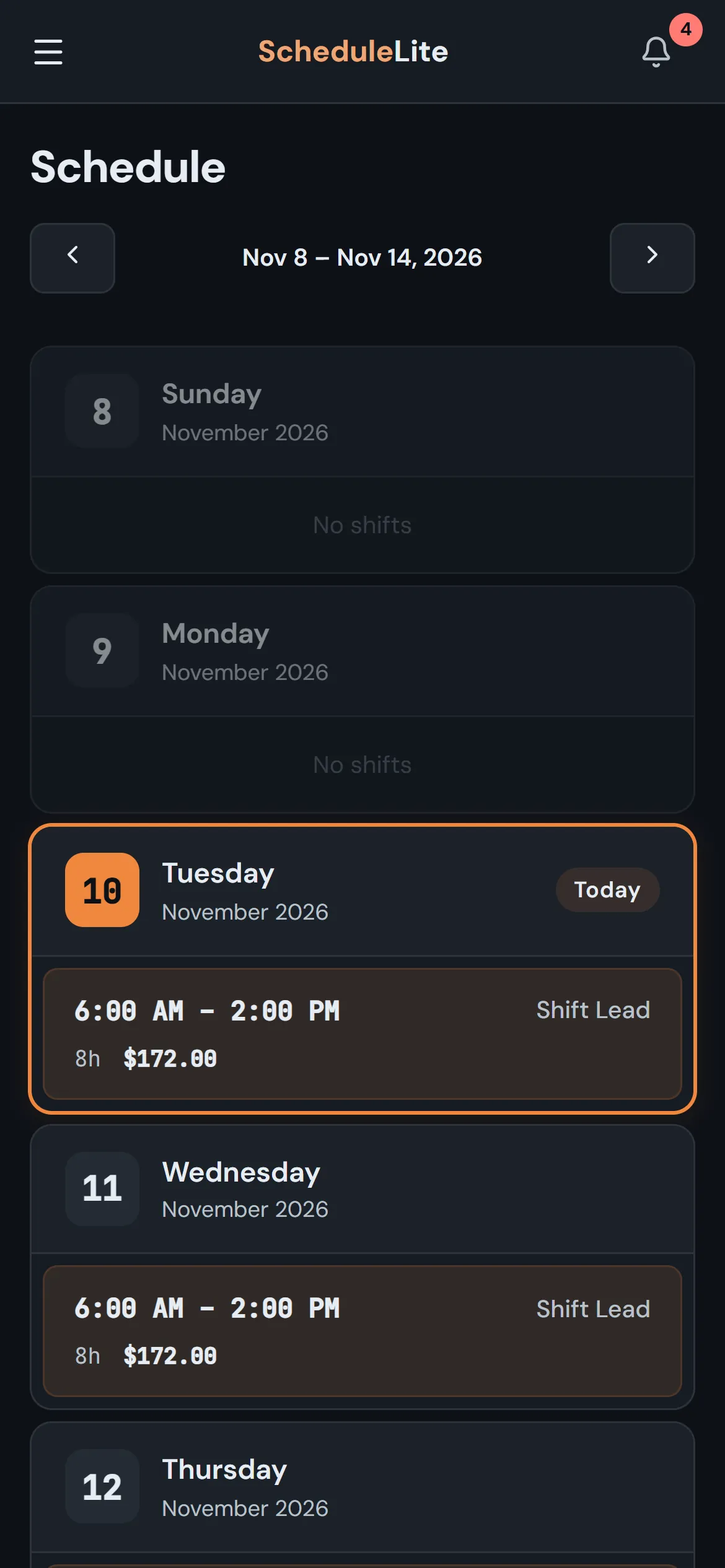
- Pay shown on every employee shift
- Full pay history on Pro
Mobile
Your team already has the app: their browser
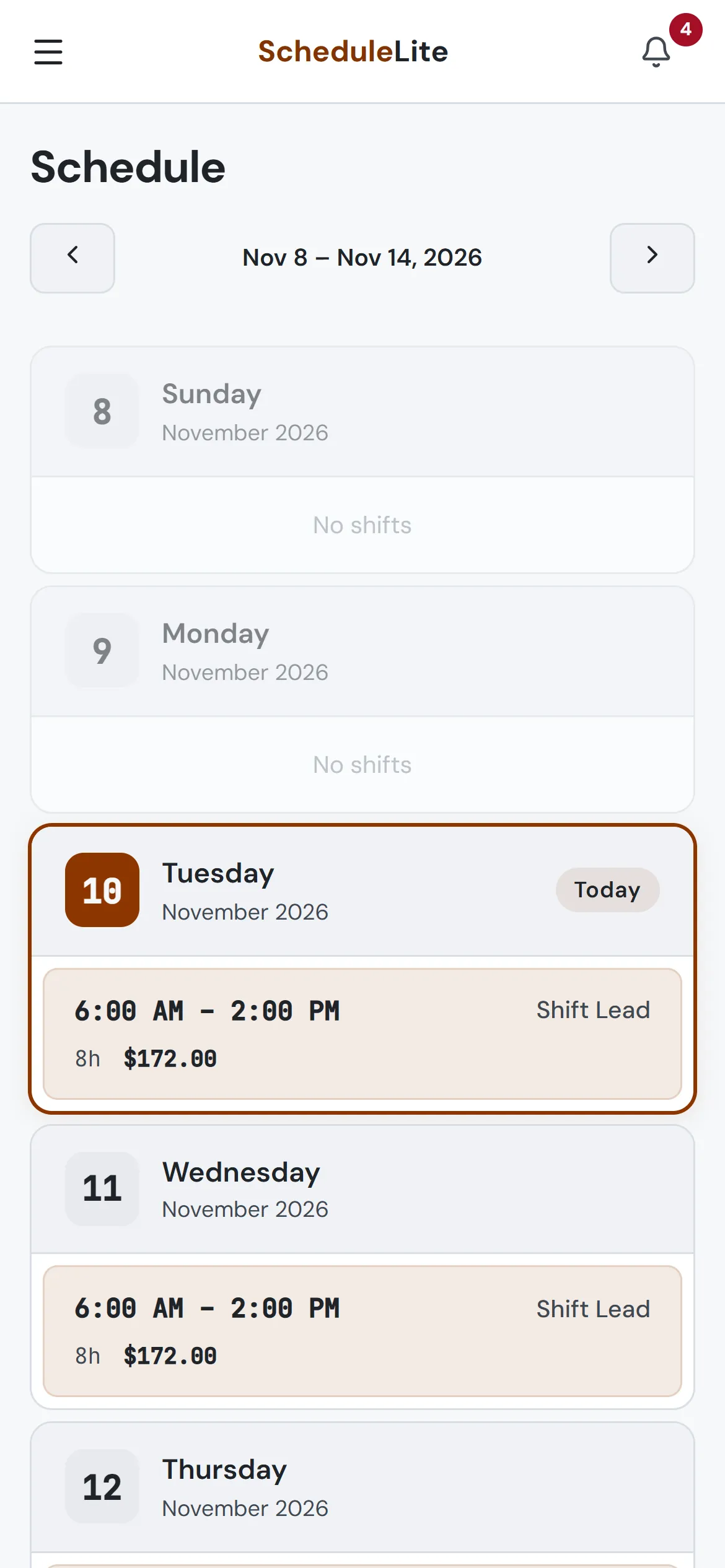
Employees check shifts, pick up extra hours, message the team and (on Plus and up) clock in from their phones. Add CrewCrow to the home screen for an app-like experience with push notifications, with nothing to install from an app store.
And the small things that add up
Works on any phone
No app store. Add it to the home screen and get push notifications.
Sign in with Google, Microsoft or Apple
Or use an email and password. Staff can link any of them from Account Settings.
Shifts in your calendar
Subscribe from Google, Apple or Outlook and your shifts show up next to everything else.
API and webhooks
On Pro, connect your own tools with API keys and signed webhooks.
Roles & colors
Group the grid by Barista, Kitchen, Shift Lead, whatever your roles are.
Store hours
Set open and close times per day; they frame the grid and the heatmap.
Invite codes
Share one code. Approve join requests from Team Settings.
Notification controls
Everyone chooses which categories they hear about.
Built-in support
Message us from inside the app and get replies right there.